
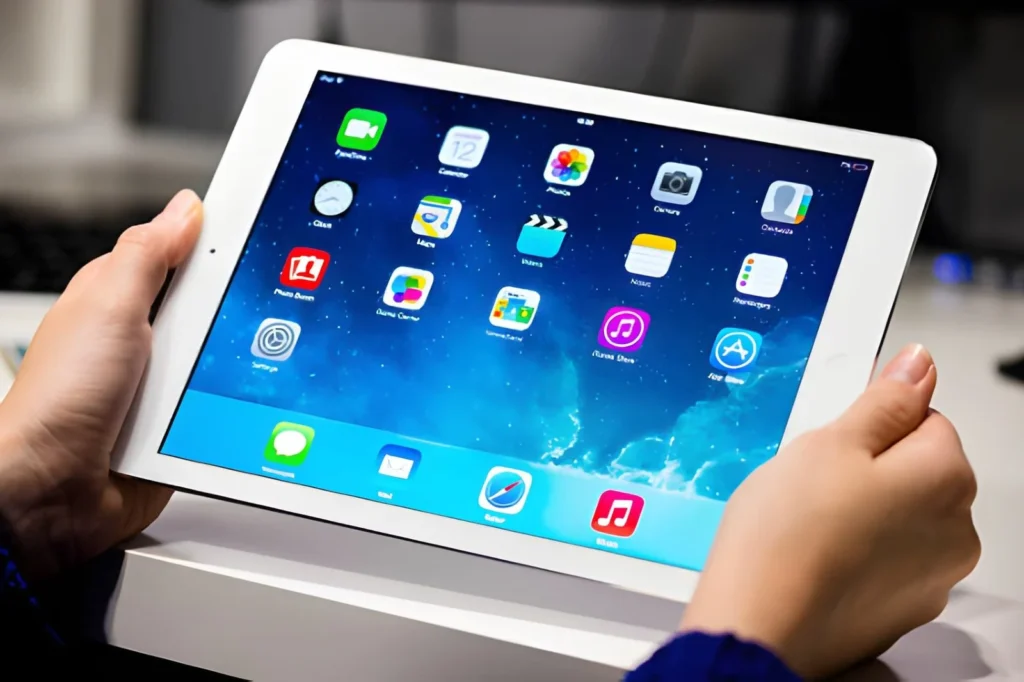

A slow check-in desk is one of the fastest ways to sour a delegate’s first impression of an event. Quick answer: setting up rented iPads for check-in and badge printing means locking each device into your registration app, pairing it with a compatible badge printer, testing the wifi or mobile data connection, and running a full trial with sample delegates before doors open. Get those four things right and the queue moves fast from the first arrival to the last.
Event teams increasingly skip buying hardware outright and instead rent ipads for events to match the exact number of check-in points needed for a single conference or trade show, then hand the devices back once the last delegate has badged in.
What Do You Need to Set Up Rented iPads for Check-In?
You need a registration app installed and locked to the device, a badge printer paired over wifi or Bluetooth, a stable network connection at the venue, and a tested workflow covering scanning, printing, and error handling. Running through the full process with a handful of test entries before doors open catches most issues early.
What Does Event Check-In Setup Actually Involve?
Setting up iPads for check-in means more than installing an app and hoping for the best. Each device needs configuring so it only runs the registration software, connecting reliably to a printer, and syncing with your delegate list so staff can search names, scan tickets, or capture walk-up registrations without the whole system grinding to a halt.
Step-by-Step: Setting Up Rented iPads for Badge Printing
Following a consistent process across every device keeps the check-in desk running smoothly, even when different staff members are handling different iPads throughout the day.
1. Install and log into your registration or event management app on each device.
2. Enable Guided Access or a kiosk mode so staff and delegates can’t exit into other apps.
3. Pair each iPad with its badge printer over wifi or Bluetooth, and confirm printer settings match your badge template.
4. Connect to a stable network, ideally a dedicated event network rather than shared public wifi.
5. Run test check-ins with sample names to confirm scanning, printing, and error messages all work as expected.
6. Brief staff on basic troubleshooting, such as reconnecting a printer or restarting the app, before doors open.
Locking Devices to Prevent Misuse
Guided Access is one of the simplest ways to stop a rented iPad wandering off task at a busy check-in desk, locking the screen to a single app so staff or curious delegates can’t accidentally exit into settings or other apps. The Tekk Group configures rented devices with this kind of restriction as standard, so check-in stations arrive ready to work rather than needing setup from scratch on site.
Choosing the Right Badge Printer Pairing
Match your printer to the badge format you’re using, since thermal printers suit simple name badges while inkjet or laser options handle fuller colour designs better. Confirm the printer connects reliably over wifi or Bluetooth before the event, as a shaky connection at the desk causes far more delay than almost anything else on the day.
Network and Connectivity Considerations
Venue wifi can get overloaded fast once hundreds of delegates connect their own phones, so it’s worth asking whether a dedicated network or mobile data solution makes more sense for your check-in devices. iPad rental for conferences often includes advice on this, since suppliers who work events regularly have usually seen what happens when a shared network buckles under load.
iPad Hire for Events With Multiple Check-In Points
Larger events running several check-in desks at once benefit from setting every iPad up identically, so staff can move between desks without relearning a different configuration. iPad hire for events at this scale usually includes matched app installs, printer pairings, and network settings across the whole batch, which saves a lot of last minute troubleshooting.
Check-In Setup at a Glance
| Setup Element | Small Event (under 200) | Large Conference (500+) |
| Devices needed | 2 to 4 check in iPads | 8 or more across multiple desks |
| Printer setup | 1 to 2 badge printers | Dedicated printer per desk |
| Network | Venue wifi usually sufficient | Dedicated network recommended |
| Staffing | 1 to 2 people on the desk | Team with a lead coordinator |
Key Factors to Check Before Your Event
A short checklist covers most of what goes wrong on the day if it’s missed:
• Registration app tested with real sample data, not just a demo account
• Badge printer paired and test printed before doors open
• Network connection confirmed, with a backup plan if wifi drops
• Devices locked down so staff and delegates can’t exit the app
• Charging plan in place for a full day of continuous use
Choosing the Right Setup for Your Event Type
Smaller seminars usually manage fine with two or three devices and a single printer, while a full scale iPad rental for trade shows setup needs multiple desks, dedicated networking, and a coordinator keeping an eye on the whole check-in area. Matching the setup to actual delegate numbers, rather than guessing, keeps queues moving and staff calm through the busiest arrival window.
Frequently Asked Questions
1. How many iPads do I need for event check-in?
A general guide is one device per 100 to 150 expected delegates during peak arrival, though busier morning rushes may need extra desks to avoid a backlog.
2. Can rented iPads be locked to just the check-in app?
Yes, Guided Access or a similar kiosk mode restricts the device to a single app, preventing staff or delegates from exiting into other functions.
3. What type of printer works best for badge printing?
Thermal printers suit simple text badges and print quickly, while inkjet or laser printers handle fuller colour designs better, so choose based on your badge template.
4. Do rented iPads come pre-configured for events?
Many suppliers offer pre-configuration, installing your app and applying restrictions before delivery, so devices are ready to test rather than set up from scratch.
5. What happens if the wifi drops during check-in?
A backup plan such as mobile data or an offline check-in mode keeps the desk moving, so it’s worth confirming this option with your registration software provider in advance.
6. Can the same iPads be reused across multiple check-in desks?
Yes, provided each device is configured identically with the same app, printer pairing, and network settings, so staff can move between desks without confusion.
Final Thoughts
Getting check-in and badge printing right comes down to preparation, not last minute fixes on the morning of the event. Lock devices down, test the printer pairing, confirm the network holds up under load, and run through the whole process with sample entries before delegates arrive. The Tekk Group has helped event organisers across the UK set up rented iPads for check-in desks of every size, and their team can talk through the right configuration before you book. Get in touch today to arrange the right iPad setup for your next event.